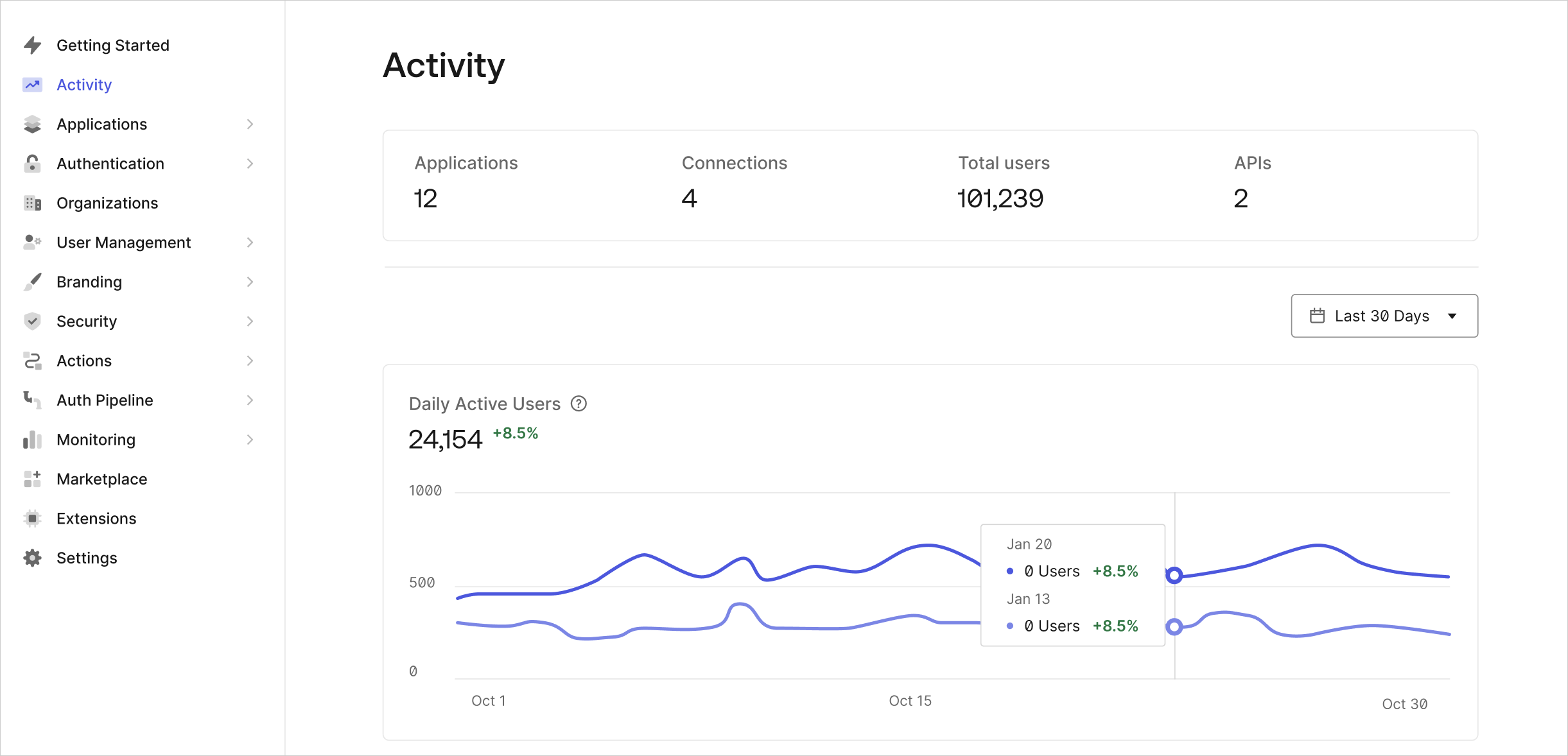
| Applications | Manage your applications, APIs, and single sign-on (SSO) integrations.
Applications: For each of your apps for which you want to authenticate users with Auth0, register an application.
APIs: For each of your APIs that you want to secure with Auth0, register an API. Create new APIs and manage existing ones.
SSO Integrations: View and enable external services for SSO. Create new SSO integrations and configure, review, and manage integration settings. |
| Authentication | Manage the identity providers through which you allow users to authenticate to your apps.
Database: Securely store and manage identifier/password credentials either in an Auth0 datastore or in your own database. Connect to existing databases using template-based JavaScript scripts that run on Auth0’s server during every authentication. Gradually migrate an existing database of legacy credentials to Auth0 as users authenticate (no password reset required).
Social: Configure social identity providers (such as Facebook, X, and Github) through which your users can log in.
Enterprise: Configure enterprise identity providers (such as Active Directory, SAML, and Office 365) through which your users can log in using their enterprise credentials.
Passwordless: Allow your users to sign up and log in using one-time passcodes (delivered by email or SMS) or one-click links, instead of passwords. |
| Organizations | Manage the organizations you do business with, and customize the experience their users have when accessing your applications. |
| User Management | Manage your users’ identities and permissions.
Users: View and create user profiles, perform password resets, block and delete users, and more.
Roles: Create and manage roles for your apps. Roles contain collections of permissions and can be assigned to users. |
| Branding | Universal Login: Create and customize a login page to which you can direct users to authenticate.
Custom Domains: Create a custom domain to maintain a consistent experience for your users.
Email Templates: Use templates to create welcome, password reset, and account verification email-based workflows.
Email Provider: Designate and configure your custom email provider information. |
| Security | Configure extra layers of security by enabling shields that protect your users against different types of attacks and user access anomalies.
Attack Protection: Manage settings for bot, IP throttling, brute-force, and breached password attacks.
Multi-factor Auth: Require additional factors during the login process to prevent unauthorized access.
Monitoring: Monitor threat intelligence events with one of our data visualization and alerting integrations. |
| Actions | Configure flows such as login, machine-to-machine, user registration, and password resets. Create and manage customized actions used in flows. |
| Auth Pipeline | Rules: Configure custom JavaScript snippets that are executed in Auth0 as part of each user authentication transaction. You can call external APIs, filter which users can log in to your application, use an AllowList, configure geolocated access, and so on.
Hooks: Customize the behavior of Auth0 when you use Database Connections by configuring Node.js code that is executed against extensibility points (which are comparable to webhooks that come with a server). |
| Monitoring | Logs: View log data of actions taken in the dashboard by administrators and user logins.
Streams: Create and manage log event streaming to external data analysis services. |
| Marketplace | Explore integrations that help your business do more with Auth0. |
| Extensions | Extend the Auth0 platform with official and third-party add-ons. |
| Settings | Configure your tenants, manage your Auth0 subscription and payment options, control your tenant administrators and other user roles. Manage other tenant settings related to your custom domains, signing keys, and other advanced settings. |
| Get Support | Go to our Support Center. If your plan does not have access to support services, see the Auth0 Community. |


 Authenticate
 Manage Users
 Customize
 Auth0 AI
 Platform